Azure Key Vault를 사용하여 JVM에 TLS/SSL 인증서 제공 - Java on Azure
Azure Key Vault를 사용하여 JVM에 TLS/SSL 인증서 제공
learn.microsoft.com
사전 준비
- 개인 도메인 소지
- A 레코드로 Server IP로 매핑
1. 키 볼트 생성
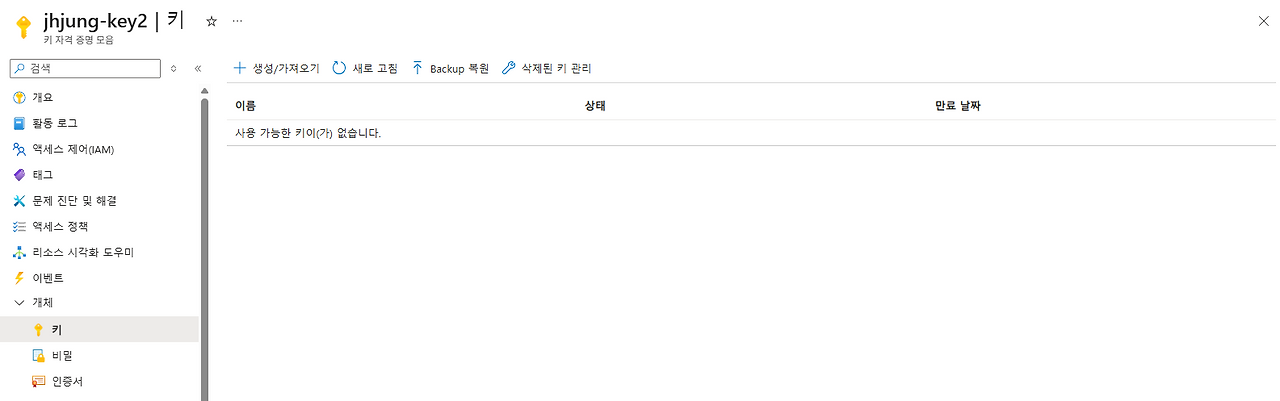
- 키 볼트 생성하게 되면 https://jhjung-key2.vault.azure.net/ 이런 식으로 자격 증명 모음 URL이 나오게 된다.
2. Server VM 구축 (Windows Server 기반)
* VM 생성 과정에서 '관리 ID'를 활성화해준다.
- 생성 후에도 활성화 가능
Adoptium
Eclipse Adoptium provides prebuilt OpenJDK binaries from a fully open source set of build scripts and infrastructure.
adoptium.net
- JDK 다운로드 해준다.
* 환경 변수 설정이 안될 시 참고
echo %JAVA_HOME%JAVA_HOME=C:\Program Files\Eclipse Adoptium\jdk-17.x.x
%JAVA_HOME%\bin # PATH에도 추가- JAVA_HOME 확인
- 없으면 시스템 환경변수 → 새 변수
3. Tomcat 설치 및 HTTP 웹 접속 확인
Apache Tomcat® - Welcome!
The Apache Tomcat® software is an open source implementation of the Jakarta Servlet, Jakarta Pages, Jakarta Expression Language, Jakarta WebSocket, Jakarta Annotations and Jakarta Authentication specifications. These specifications are part of the Jakarta
tomcat.apache.org
- 압축 해제 후 bin 폴더 이동
- Powershell 관리자권한으로 실행 후 해당 폴더에서 서버 실행
- .\catalina.bat run
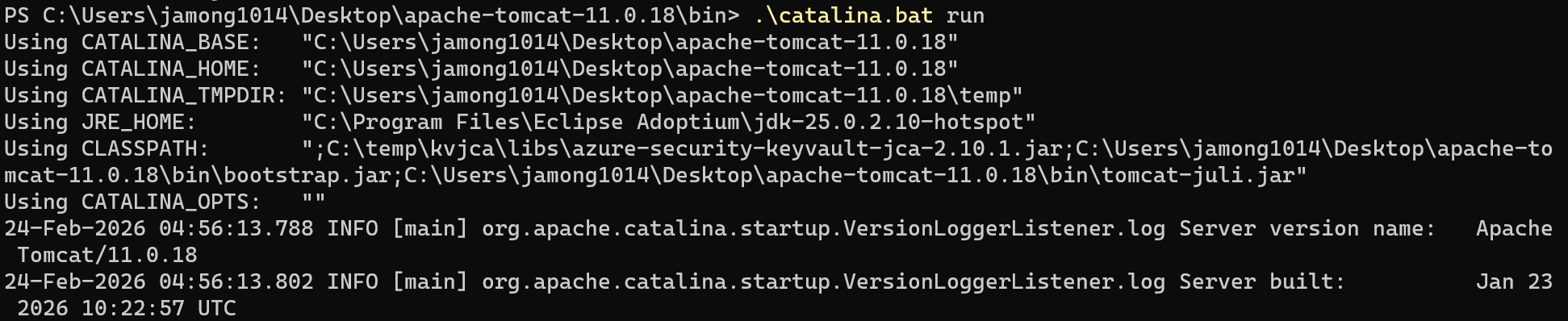
netsh advfirewall firewall add rule name="Tomcat 8080" dir=in action=allow protocol=TCP localport=8080- 인바운드 시스템 방화벽 8080 포트 허용

- VM NSG에 8080포트 허용
netstat -ano | findstr :8080- Powershell 에서 8080 오픈 포트 확인

- HTTP 포트로 웹 접속 확인
4. VM에서 Win-ACME로 공인 인증서 발급
win-acme
win-acme This is a ACMEv2 client for Windows that aims to be very simple to start with, but powerful enough to grow into almost every scenario. A very simple interface to create and install certificates on a local IIS server A more advanced interface for m
www.win-acme.com
- 압축 해제 후 wacs.exe 관리자 권한으로 실행
- 실행 후 M (PFX 저장 위치 직접 선택 가능)
- 1 (Read bindings from IIS) 선택 / 2번 통해서 hostname 직접 입력 가능
- A = Pick all bindings 선택
- 계속 진행 Y 선택
- 4 (Single certificate) 선택
- 2 (Serve verification files from memory)
- 2 (RSA key)
- 3 ( PFX archive )
- 2 (Type/paste in console)

- 전 게시글에서 만들었던 iis.foolblack.com 인증서로 진행
5. Azure Key Vault에 발급된 인증서 업로드
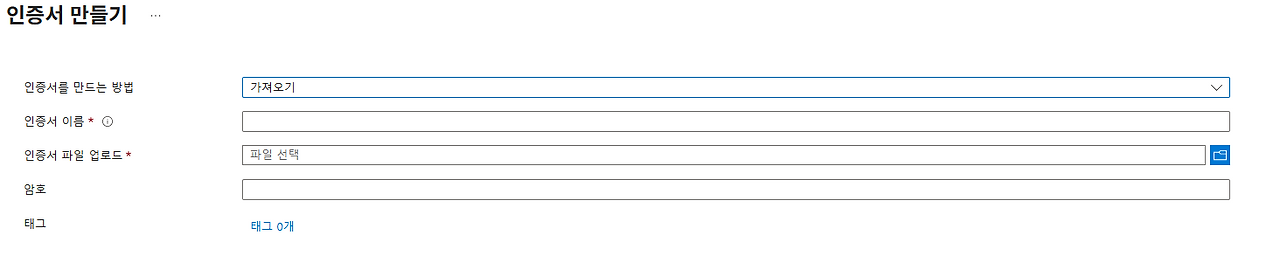
- 인증서 가져오기를 통해 생성된 PFX 파일과 설정한 비밀번호를 입력해 주면 된다
4. Azure Key Vault에 VM 관리 ID에 대해 권한 부여

- Key Vault 비밀 사용자 부여
- Key Vault 읽기 권한자 부여
5. Azure Key Vault JCA Provider 설치
apache-tomcat-11.0.18\lib 폴더에 Azure JCA provider jar 파일을 넣어야 함.
- 위 첨부된 파일을 이용해도 됨.
- Maven을 통해 설치해도 됨.
mvn dependency:get -Dartifact=com.azure:azure-security-keyvault-jca:2.10.1
Download Apache Maven – Maven
Maven Daemon 1.0.3 Apache Maven Daemon (mvnd) is available as a separate download. In order to guard against corrupted downloads/installations, it is highly recommended to verify the signature of the release bundles against the public KEYS used by the Apac
maven.apache.org
- maven 설치는 위 링크를 통해 진행.
- bin.zip을 다운받아 환경 변수 등록
변수 이름: MAVEN_HOME
변수 값: C:\maven\apache-maven-3.9.x

%MAVEN_HOME%\bin # Path
6. Tomcat 시작 옵션에 Key Vault 인증 정보 넣기

set "JAVA_OPTS=%JAVA_OPTS% -Dazure.keyvault.uri=https://[키볼트이름].vault.azure.net/"
set "CLASSPATH=%CLASSPATH%;C:\temp\kvjca\libs\azure-security-keyvault-jca-2.10.1.jar"- apache-tomcat-11.0.18\bin 폴더에 setenv.bat 파일 만들기
- CLASSPATH는 jar 파일이 있는 경로로 설정
7. server.xml 파일 설정
<?xml version="1.0" encoding="UTF-8"?>
<!--
Licensed to the Apache Software Foundation (ASF) under one or more
contributor license agreements. See the NOTICE file distributed with
this work for additional information regarding copyright ownership.
The ASF licenses this file to You under the Apache License, Version 2.0
(the "License"); you may not use this file except in compliance with
the License. You may obtain a copy of the License at
http://www.apache.org/licenses/LICENSE-2.0
Unless required by applicable law or agreed to in writing, software
distributed under the License is distributed on an "AS IS" BASIS,
WITHOUT WARRANTIES OR CONDITIONS OF ANY KIND, either express or implied.
See the License for the specific language governing permissions and
limitations under the License.
-->
<!-- Note: A "Server" is not itself a "Container", so you may not
define subcomponents such as "Valves" at this level.
Documentation at /docs/config/server.html
-->
<Server port="8005" shutdown="SHUTDOWN">
<Listener className="org.apache.catalina.startup.VersionLoggerListener" />
<!-- Security listener. Documentation at /docs/config/listeners.html
<Listener className="org.apache.catalina.security.SecurityListener" />
-->
<!-- OpenSSL support using Tomcat Native -->
<!-- Listener className="org.apache.catalina.core.AprLifecycleListener" -->
<!-- OpenSSL support using FFM API from Java 22 -->
<!-- <Listener className="org.apache.catalina.core.OpenSSLLifecycleListener" /> -->
<!-- Prevent memory leaks due to use of particular java/javax APIs-->
<Listener className="org.apache.catalina.core.JreMemoryLeakPreventionListener" />
<Listener className="org.apache.catalina.mbeans.GlobalResourcesLifecycleListener" />
<Listener className="org.apache.catalina.core.ThreadLocalLeakPreventionListener" />
<!-- Global JNDI resources
Documentation at /docs/jndi-resources-howto.html
-->
<GlobalNamingResources>
<!-- Editable user database that can also be used by
UserDatabaseRealm to authenticate users
-->
<Resource name="UserDatabase" auth="Container"
type="org.apache.catalina.UserDatabase"
description="User database that can be updated and saved"
factory="org.apache.catalina.users.MemoryUserDatabaseFactory"
pathname="conf/tomcat-users.xml" />
</GlobalNamingResources>
<!-- A "Service" is a collection of one or more "Connectors" that share
a single "Container" Note: A "Service" is not itself a "Container",
so you may not define subcomponents such as "Valves" at this level.
Documentation at /docs/config/service.html
-->
<Service name="Catalina">
<!--The connectors can use a shared executor, you can define one or more named thread pools-->
<!--
<Executor name="tomcatThreadPool" namePrefix="catalina-exec-"
maxThreads="150" minSpareThreads="4"/>
-->
<!-- A "Connector" represents an endpoint by which requests are received
and responses are returned. Documentation at :
HTTP Connector: /docs/config/http.html
AJP Connector: /docs/config/ajp.html
Define a non-SSL/TLS HTTP/1.1 Connector on port 8080
-->
<Connector port="8080" protocol="HTTP/1.1"
connectionTimeout="20000"
redirectPort="8443" />
<!-- A "Connector" using the shared thread pool-->
<!--
<Connector executor="tomcatThreadPool"
port="8080" protocol="HTTP/1.1"
connectionTimeout="20000"
redirectPort="8443" />
-->
<!-- Define an SSL/TLS HTTP/1.1 Connector on port 8443 with HTTP/2
This connector uses the NIO implementation. The default
SSLImplementation will depend on the presence of the APR/native
library and the useOpenSSL attribute of the AprLifecycleListener.
Either JSSE or OpenSSL style configuration may be used regardless of
the SSLImplementation selected. JSSE style configuration is used below.
-->
<!--
<Connector port="8443" protocol="org.apache.coyote.http11.Http11NioProtocol"
maxThreads="150" SSLEnabled="true">
<UpgradeProtocol className="org.apache.coyote.http2.Http2Protocol" />
<SSLHostConfig>
<Certificate certificateKeystoreFile="conf/localhost-rsa.jks"
certificateKeystorePassword="changeit" type="RSA" />
</SSLHostConfig>
</Connector>
-->
<Connector port="8443"
protocol="org.apache.coyote.http11.Http11NioProtocol"
SSLEnabled="true">
<SSLHostConfig>
<Certificate
certificateKeyAlias="jhjung-pfx"
certificateKeystoreType="DKS"
certificateKeystoreProvider="AzureKeyVault"
certificateKeystoreFile="file:/"
/>
</SSLHostConfig>
</Connector>
<!-- Define an AJP 1.3 Connector on port 8009 -->
<!--
<Connector protocol="AJP/1.3"
address="::1"
port="8009"
redirectPort="8443" />
-->
<!-- An Engine represents the entry point (within Catalina) that processes
every request. The Engine implementation for Tomcat stand alone
analyzes the HTTP headers included with the request, and passes them
on to the appropriate Host (virtual host).
Documentation at /docs/config/engine.html -->
<!-- You should set jvmRoute to support load-balancing via AJP ie :
<Engine name="Catalina" defaultHost="localhost" jvmRoute="jvm1">
-->
<Engine name="Catalina" defaultHost="localhost">
<!--For clustering, please take a look at documentation at:
/docs/cluster-howto.html (simple how to)
/docs/config/cluster.html (reference documentation) -->
<!--
<Cluster className="org.apache.catalina.ha.tcp.SimpleTcpCluster"/>
-->
<!-- Use the LockOutRealm to prevent attempts to guess user passwords
via a brute-force attack -->
<Realm className="org.apache.catalina.realm.LockOutRealm">
<!-- This Realm uses the UserDatabase configured in the global JNDI
resources under the key "UserDatabase". Any edits
that are performed against this UserDatabase are immediately
available for use by the Realm. -->
<Realm className="org.apache.catalina.realm.UserDatabaseRealm"
resourceName="UserDatabase"/>
</Realm>
<Host name="localhost" appBase="webapps"
unpackWARs="true" autoDeploy="true">
<!-- SingleSignOn valve, share authentication between web applications
Documentation at: /docs/config/valve.html -->
<!--
<Valve className="org.apache.catalina.authenticator.SingleSignOn" />
-->
<!-- Access log processes all example.
Documentation at: /docs/config/valve.html
Note: The pattern used is equivalent to using pattern="common" -->
<Valve className="org.apache.catalina.valves.AccessLogValve" directory="logs"
prefix="localhost_access_log" suffix=".txt"
pattern="%h %l %u %t "%r" %s %b" />
</Host>
</Engine>
</Service>
</Server>- server.xml 설정 코드
- 변경 사항은 아래를 참조
변경 사항
<Connector port="8443"
           protocol="org.apache.coyote.http11.Http11NioProtocol"
           SSLEnabled="true">
  <SSLHostConfig>
    <Certificate
        certificateKeyAlias="jhjung-pfx"
        certificateKeystoreType="DKS"
        certificateKeystoreProvider="AzureKeyVault"
	certificateKeystoreFile="file:/"
/>
  </SSLHostConfig>
</Connector>

# 위 설정 추가- SSL 포트 8443 설정
- 인증서 이름 : 키 볼트에 업로드 된 'jhjung-pfx'
- Tomcat이 기본값으로 .keystore 같은 걸 잡는 경우가 있어 file:/ URI로 명
<!-- <Listener className="org.apache.catalina.core.OpenSSLLifecycleListener" /> -->
# 주석 처리- Tomcat이 OpenSSL 모드로 떠서 JSSE(JCA Provider) 등록을 안 타는 경우가 있음
- 그래서 주석 처리
8. JVM에 AzureKeyVault Provider 등록
- 경로 : C:\Program Files\Eclipse Adoptium\jdk-25.0.2.10-hotspot\conf\security\java.security
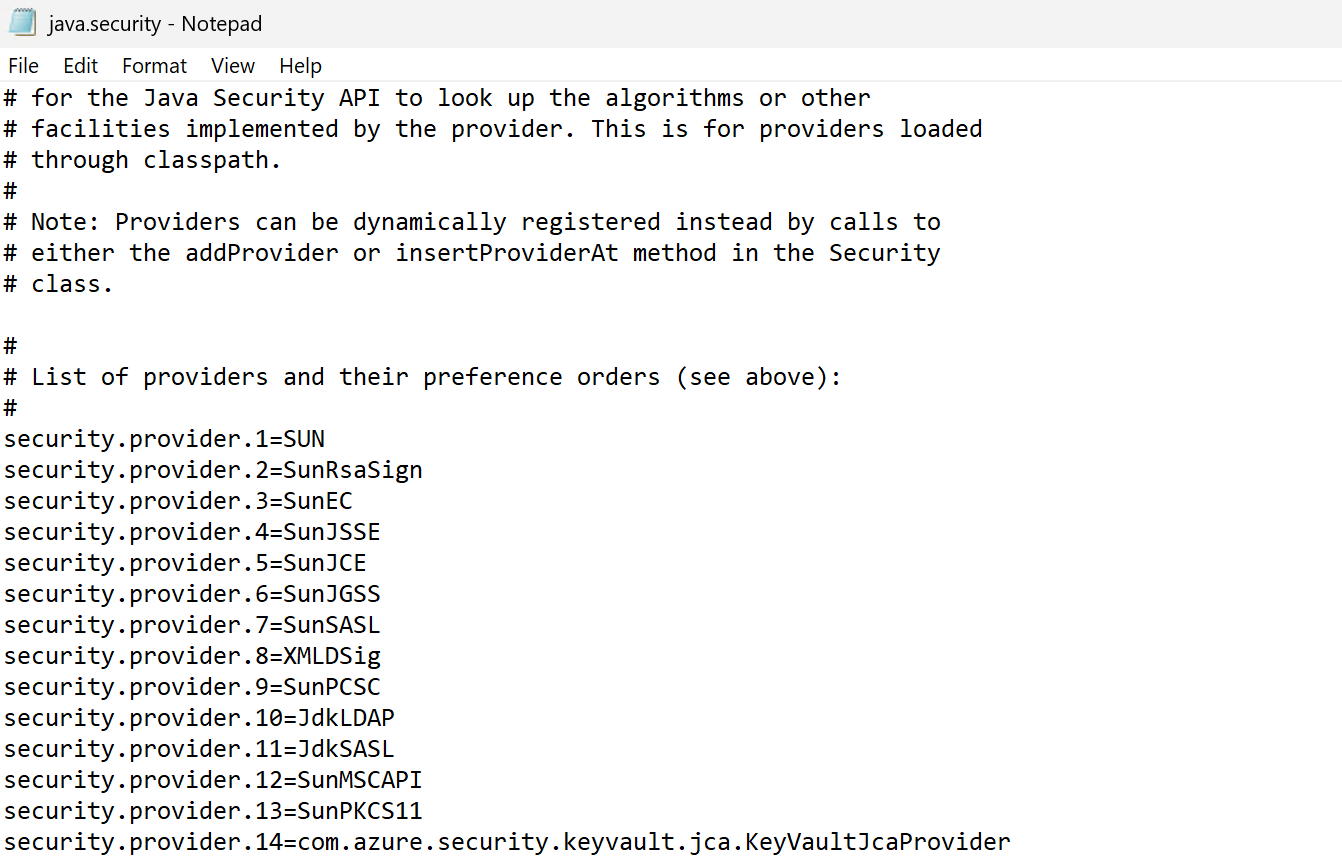
- security.provider.14=com.azure.security.keyvault.jca.KeyVaultJcaProvider 추가
그리고 추가로 Jshell에서 등록
jshell --class-path "C:\temp\kvjca\libs\azure-security-keyvault-jca-2.10.1.jar"

import java.security.*;
Security.addProvider(new com.azure.security.keyvault.jca.KeyVaultJcaProvider());
for (var p : Security.getProviders()) System.out.println(p.getName());

9. 8443 포트 방화벽 및 NSG에서 오픈
netsh advfirewall firewall add rule name="Tomcat 8443" dir=in action=allow protocol=TCP localport=8443
- Tomcat 재시작 후 8443 오픈 포트 확인
- netstat -ano | findstr :8443
결과
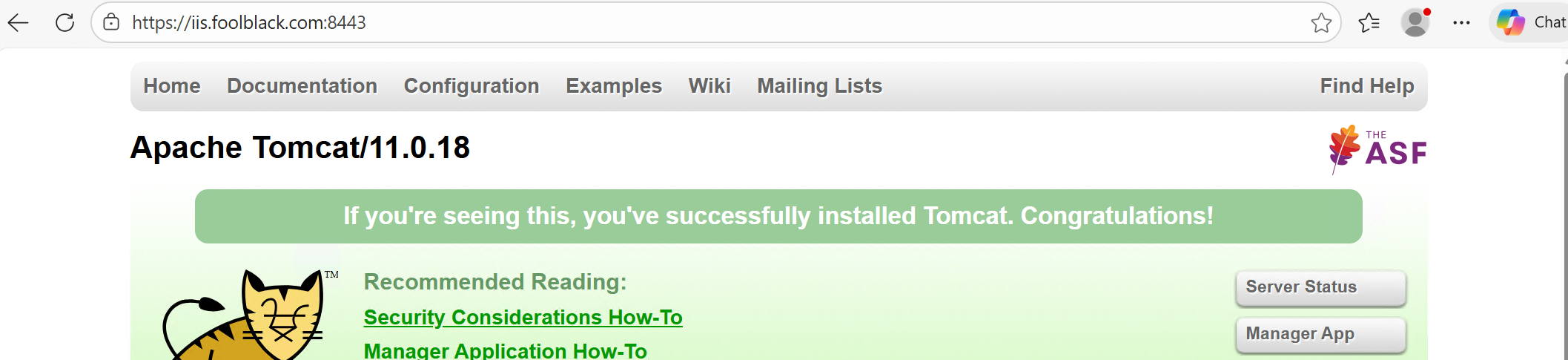
- iis.foolblack.com:8443 으로 접속 된것을 확인
'서버 > Azure' 카테고리의 다른 글
| [Azure] IIS에 Key Vault 연동 및 TLS 적용 (0) | 2026.02.24 |
|---|---|
| [Azure] Container Insight와 Log Analytics(Alert 생성) (0) | 2026.01.14 |
| [Azure] 인증/인가를 통해 App Service(WEB)에 대한 사용 권한 (0) | 2026.01.09 |
| [Azure] App Service, APIM 에 대한 DR, SLA 관련 (0) | 2026.01.07 |
| [Azure] Private 환경에서 AppService 접근 (0) | 2025.12.12 |


